


Online Banking
It's that Easy!
Discover our online banking experience that brings convenience to a whole new level.
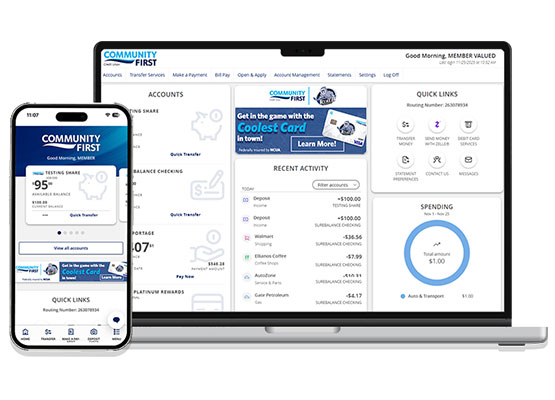
Modern Look: A streamlined design with a dashboard optimized for each device.
Quick Links: Display smart shortcuts of the features you use most often.
Account Tiles: Favorite up to 20 accounts on your home screen.
Recent Activity: Transactions from the last 30 days with filter options to see specific shares/loans.
Bill Pay: Set up and pay all your bills from one place.
Personal Financial Management (PFM) Tool: Track habits, spot trends, save smarter, and much more.
Digital Wallet
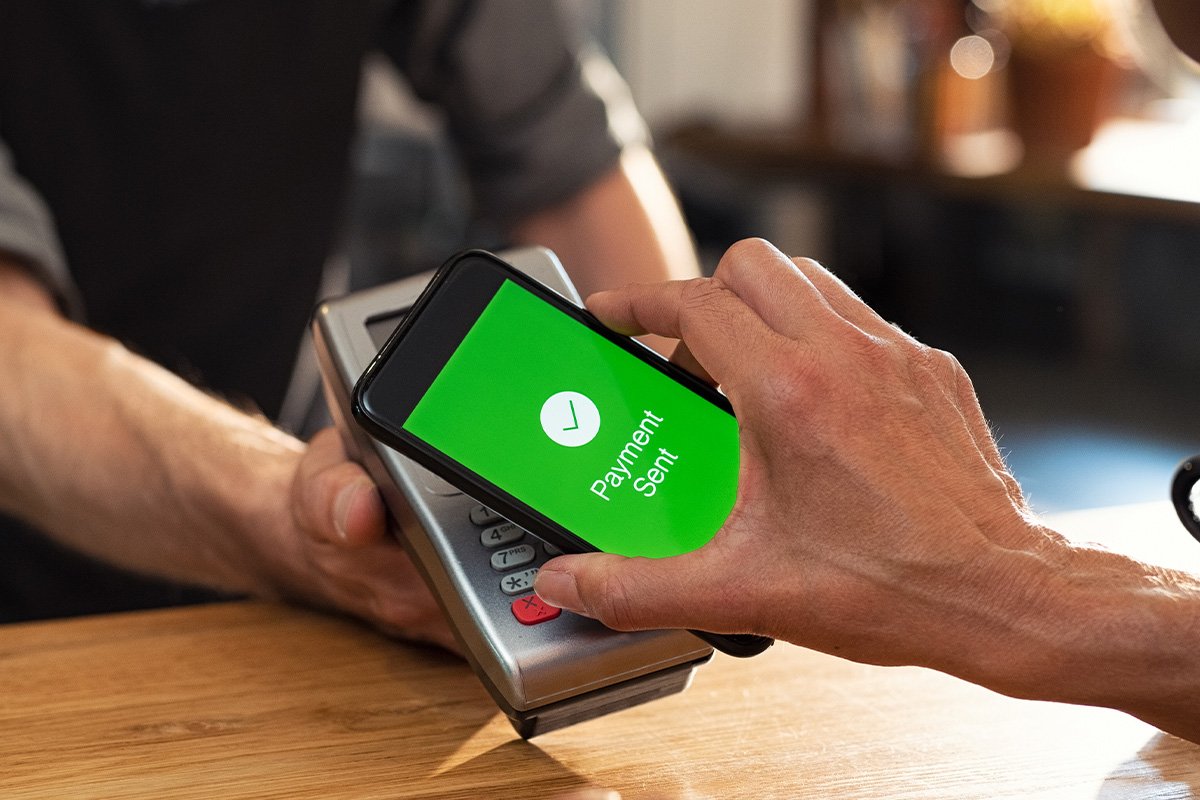
Carry your Community First Debit or Credit Cards securely on your mobile device. Our cards are compatible with Google Pay®, Apple Pay®, and Samsung Pay® and let you pay in-store and online directly from your smartphone and other devices.
Learn More
Mobile Banking App
Bank on the go with our Mobile Banking app! Do everything you can do from a laptop or table on your phone.
Download App Store | Google Play.
Mobile Deposits
Need to deposit a check? Skip the trip to the branch and deposit checks from any mobile device with a camera using our free mobile banking app. Tap the Deposit a Check button, snap a photo of the front and back of your endorsed check, and you’re ready to make a deposit.
Learn More

Zelle®
Introducing Zelle® — a fast, safe and easy way to send money to friends, family and other people you trust, wherever they bank1.Whether you’re paying rent, gifting money, or splitting the cost of a bill, Zelle® has you covered.
Learn More
Use Zelle® Safely
eStatements
Go paperless with eStatements. We’ll deliver your account statements securely through online and mobile banking instead of in your mailbox. That means less paper to manage and convenient 24/7 access to view statements and download them as PDFs.
Learn More
Extra Benefits
How Do I Set Up Bill Pay?
Pay all your bills quickly and conveniently with our secure bill pay tool, available for free in Online Banking and our mobile app.
You can set up Bill Pay in Community First’s Online and Mobile Banking in a few simple steps:
Desktop: Select Bill Pay from the top navigation on your desktop.
Mobile App: Click Menu on the bottom-right corner and select Bill Pay from the main navigation on the left side.
Click on Enroll in Bill Pay.
Desktop: Select Add Biller from the home page, enter the biller's name, select from drop down or manually add biller, and enter bill information.
Mobile App: Click on Options and Add Payee information.
Desktop: Go to Pay Bills. Select the Payee and add the information to make your payments (amount and delivery date).
Mobile App: Select the Payee and add the information to make your payments (amount, account you're paying from, and delivery date).
Click on Submit Payment.
To access Debit Card Services, select Account Management from the main navigation in desktop or mobile banking. Select Debit Card Services and choose your card. Follow the easy instructions for Travel Notifications, Temporarily Enable/Disable or Report Lost.

You should disable your card if you temporarily misplaced your debit card and don't want to change your debit card number. It's easy to enable your account later if you find your card. Disabling your card lets us know that you don't want us to authorize any new purchases, cash advances, or balance transfers until you Unfreeze. By disabling, you are temporarily deactivating your debit card.
If you think your card is lost, you should choose the Report Lost option. This will prevent in-store purchases and point-of-sale transactions associated with this card. This will let us know that we need to send you a new debit card with a new account number. By reporting lost, you are permanently deactivating your debit card.


FAQs
Operating Systems
Do you know what operating system (OS) and web browsers you currently use on your desktop and mobile devices? Most computers and phones will notify you if you have an update, and some automatically update for you. Below are a list of operating systems and web browsers that support Online Banking.
| Supported Operating Systems (Mobile) |
|
| Supported Web Browsers (Desktop) |
|
Learn more about the How to identify and update an operating system version (Mobile and Desktop)
Update your security preferences in Online Banking
For your security, you may receive periodic prompts to re-register your device and enter a secure access code to continue to access Online & Mobile Banking. To ensure proper delivery of your secure access code, it is important to verify your phone number on file.
Verify or update your phone number
Follow the steps below to verify that we have the correct phone number and email address:
- Log into Online Banking
- Click on the Settings Tab
- Under Security Preferences, select the Security Access Code Delivery
- Verify that a phone number is listed. Add and/or remove delivery methods as needed.
You can contact a Bill Pay Specialist for assistance at 888.918.7434
*U.S. checking or savings account required to use Zelle®. Transactions between enrolled users typically occur in minutes. Zelle and the Zelle related marks are wholly owned by Early Warning Services, LLC and are used herein under license.